
 Now enrolling · Mobile mechanics & mobile tire service
Are you a mobile mechanic?
DriveMax Repair has an app specially designed for you — built for the way mobile work actually happens.
The customer calls. You go. You do the job. The invoice is already in your hand, and you get paid before you leave the driveway. No shop, no bays, no front desk — the app is the office, and it rides in the van with you.
$39.99/mo — one flat price, everything included. Your trial is a full 30 days, and we never ask for a card during it; subscribing is a separate step you choose at the end of the 30 days.
The demo is the working app — preloaded with sample jobs, invoices and appointments, the old-part photos and the signed customer approvals, so you learn it by tapping through work that looks like yours. It opens in your browser; add it to your home screen and it rides like an app. No account, no card. Like it? Start your free trial and the sample work clears out — you start fresh.
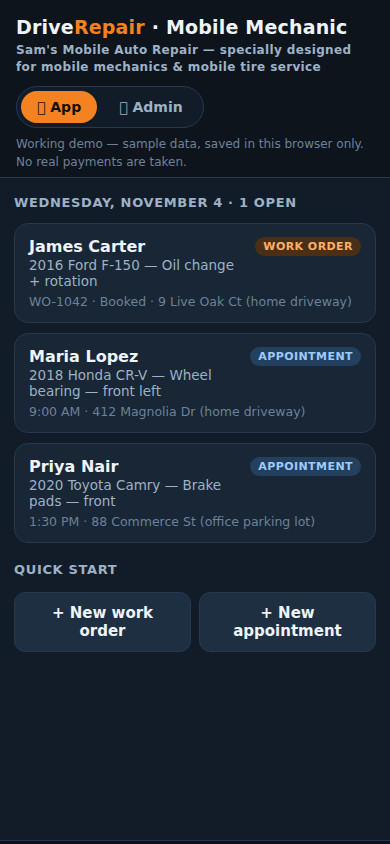
TodayYour jobs, on one screen
Book it. Do it. Get paid.
The whole job, start to finish, without leaving the app.
Book the job
The appointment lands in the app — or start a work order on the spot when a job walks up to the van.
Go
Address in hand, customer a tap-to-call away. Roll.
Do the work
The named job — a wheel bearing, an oil change, a set of brake pads — done where the vehicle sits.
Invoice in your hand
Labor and parts tap onto the invoice from your own service menu — your hours, your prices, built once and tapped forever.
Get paid on the spot
The card runs right at the vehicle, through your own Square. No "we'll mail a check," no chasing paper.
Send it & done
The invoice goes out by text or email as a PDF before you pull away. The phone is the printer.
That's it — and that's the point. No shop bloat stands between you and the work: the tools are the ones the job actually calls for — an inspection, photos, a scan when the car has something to say, and a quick customer OK before you start. You don't need a back office. You need to book it, do it, and get paid for it.
The app, in your hand
Real screens from the working app — not mockups of someday.
TodayAppointments and work orders, one list
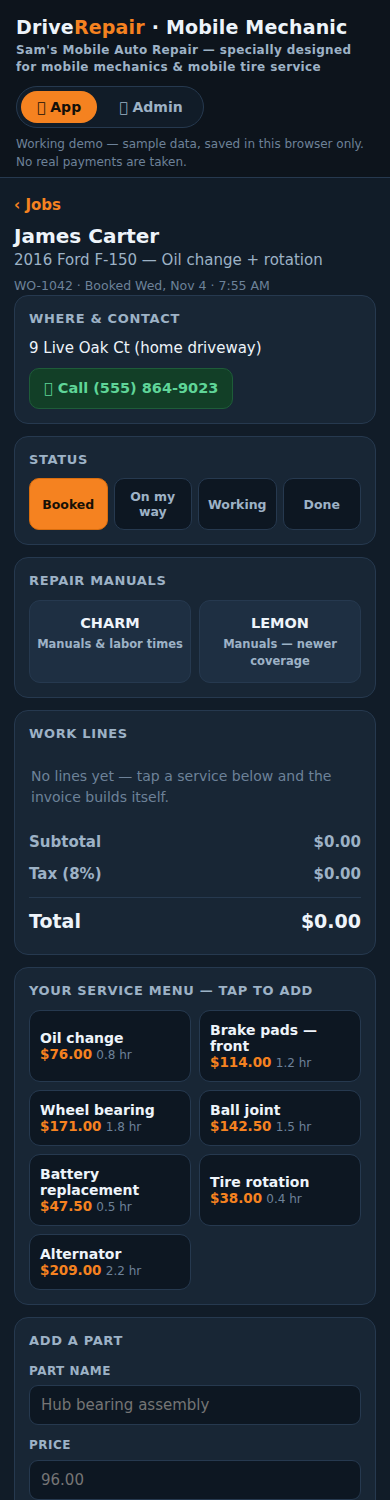
The jobYour services, tapped onto the invoice
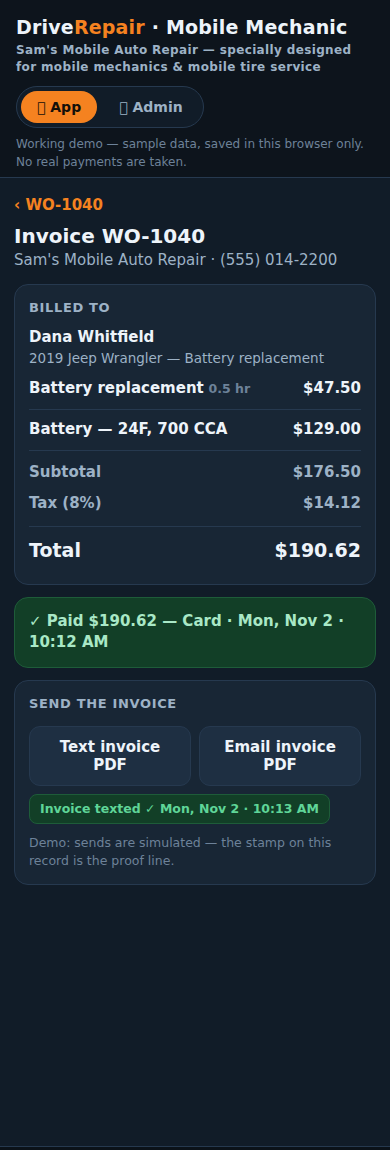
PaidCard on the spot, invoice texted out
What's in it
Everything a one-van operation runs on — and nothing it doesn't.
83 features. Every one included in the subscription — no upsells, no add-ons.
Appointment book. Your day lives in the app — what’s next, where, and for who. Today is always the first thing you see.
Work orders. A job walks up to the van instead of calling? Open a work order on the spot and walk it from Booked to On my way to Working to Done — same record, same invoice, no double entry.
Invoicing. Labor and parts tap onto the invoice from your own service menu — your hours, your prices — and it goes out by text or email as a PDF before you pull away.
Square payments, in the app. Run the customer’s card right at the vehicle, through your own Square — or mark the job paid in cash, right there. No “we’ll mail a check,” no chasing paper.
Inspection sheet. A quick once-over on every job — tires, brakes, battery, belts, fluids and more. Mark what’s OK, what needs attention, and what’s urgent, with a note on each.
Job photos, for the record. Snap the before, the problem, and the finished work. They stay on the job — your proof of what you found and what you did.
Customer approvals, signed. Capture photos right on the job and send the customer the estimate for approval from the app — the inspection, the photos and the scan ride along. Their approval comes right back in the app, and you capture their signature on the spot. The wrenches don’t turn until it’s in writing.
VIN scanning. Point the phone at the VIN barcode and the car’s year, make and model fill themselves in — no typing 17 characters in a driveway.
Bluetooth OBD2 scanning. The car tells on itself: trouble codes in plain English, the freeze frame, and live readings — all saved onto the job. How it works, below.
A money ledger that keeps it simple. Every job shows what the parts cost you and what’s left after parts. That’s the whole report — no accounting degree required.
Your home base, on the computer. Set the business up once on a real screen — name, tax rate, labor rate, your logo riding on every invoice, your service menu — and read the week at a glance: money in, jobs done, average ticket, and the full ledger of every job.
Repair manuals, linked in. Manual links ride right on the job, for the moment a “simple job” isn’t.
How the scanning works
Plug a Bluetooth OBD2 adapter — about $20 at any parts store — into the car’s port under the dash, open the job, and tap Scan the car. The trouble codes come back in plain English, along with the freeze frame (what the engine was doing when the fault hit) and the live readings, and it all saves onto the job. Fix the problem, scan again, and the before-and-after proof rides with the invoice. When the fix is done you can clear the codes right from the app — the before-scan saves first, so the proof can’t be erased. Already run a shop scanner, like a Snap-on or Autel? Attach its report to the job instead — same record, same invoice.
The plug is yours; the reading is ours. Scanning runs in Chrome on Android phones and tablets, and in Chrome on a computer. An iPhone’s browser can’t reach the plug — we’d rather tell you that straight than sell you a surprise.
One flat subscription, everything included — the same DriveMax rule as always: we make our money on the subscription, not on upsells and add-ons. DriveMaxMM is enrolling now — $39.99/mo after your 30-day free trial, and no card is asked for during the trial. Setup and menu building happen on the computer at home, on a real screen — the app is for the road.
Every feature, in plain sight
The full list — all 83 features, grouped the way the app itself is built. Nothing held back for a higher tier, because there isn't one.
Today & Appointments
- Today board — today's appointments and today's open work orders in one time-sorted list.
- Open-jobs fallback — if nothing is scheduled for today, Today shows all open work orders instead of an empty day.
- Quick start — New work order and New appointment buttons sit at the bottom of the Today screen.
- Appointment book — all appointments sorted by date and time, with customer, vehicle, service, and address.
- New appointment form — customer, phone, vehicle, service, date, time, address, and notes in one form.
- Appointment detail — one appointment's time, address, notes, and VIN on its own screen.
- Tap-to-call — a call button on an appointment or a job dials the customer's phone number.
- Start work order from appointment — turns an appointment into a linked work order with one tap.
- No duplicate start — an appointment that already has a work order shows Open the work order instead of Start.
- VIN carried forward — a VIN saved on an appointment carries into its work order, so the next visit starts with it.
Jobs & Work Orders
- Jobs list — open work orders separated from done ones, each row showing its total and a paid, unpaid, or status chip.
- New work order on the spot — customer, phone, vehicle, service, address, and notes, with no appointment first.
- Automatic work order number — each new work order gets the next WO number on its own.
- Job status steps — Booked, On my way, Working, and Done, moved with tap buttons on the job.
- Done timestamp — marking a job Done stamps the finish time; moving it back off Done clears that stamp.
- Where and contact panel — the job address and your private notes on the job screen.
- Repair manuals link — a CHARM link for manuals and labor times rides on every job screen.
- Work lines and totals — each labor, part, and custom line with its hours or cost and price, plus subtotal, tax, and total.
- Remove a work line — delete a line from an unpaid job with the × on that line.
- Service menu tap-to-add — tapping a service from your own menu adds it to the job at its saved hours and price.
- Add a part line — a named part, at the price the customer pays.
- Add a custom line — a one-off line with its own label and price, for work that is not on the menu.
- Paid-job line lock — once a job is paid, its lines can no longer be added to or removed.
- Paid banner on the job — a paid job shows the amount, the method, and the time paid at the top of its screen.
Inspection, Photos & Approvals
- Inspection sheet — a 10-item sheet: tires and wheels, brakes, battery and starting, belts and hoses, fluids, lights and wipers, steering and suspension, exhaust, filters, and cooling.
- Inspection marks — each item marked OK, Needs attention, or Urgent; tapping the mark again unmarks it.
- Note on each item — each inspection item takes its own note, and that note rides to the customer as the finding.
- Inspection count line — shows how many items were checked, and how many are OK, needs attention, and urgent.
- Job photos — add a photo from the camera or files, downscaled for storage, and keep it on the job.
- Photo grid and removal — job photos show as thumbnails on the job and can be removed one at a time.
- Customer approval packet — bundles the inspection findings, the job photos, and the scan report into one packet in plain words.
- Packet privacy — the packet never includes the job's private notes; those stay on your screen only.
- Packet contents count — the job panel counts the packet's checked items, findings, photos, and scans before it is sent.
- Preview customer view — see the packet exactly as the customer sees it, before you send it.
- Send packet for approval — Text and Email buttons send the packet for approval, stamped on the job.
- Packet status stamps — the job shows Waiting with the time sent, or Approved with the time the customer approved.
- Customer Approve button — the customer's Approve the work button records the approval and its time back on the job.
Invoicing & Payments
- Invoice screen — the invoice number, who it is billed to, every line, and the subtotal, tax, and total.
- Invoice branding — the invoice header carries your business name and phone, and your business logo when one is set.
- Scan report on the invoice — saved scans appear on the invoice as a Scan report section, so they ride along when it is texted or emailed.
- Send the invoice — Text invoice PDF and Email invoice PDF buttons, and each send leaves a stamped texted or emailed line as the proof.
- Pay by card — a card sheet takes the card for the full invoice total; live, it runs on your own Square account.
- Card number check — a card number that looks too short is stopped with a plain message and can be run again.
- Mark paid — cash — mark the job paid in cash, recording the amount, the method, and the time.
- Payment completes the job — paying a job that is not yet Done marks it Done and stamps the finish time.
Scans (OBD2 + VIN)
- Bluetooth OBD2 scan — connects to a Bluetooth LE OBD2 plug and reads the car's trouble codes from the job screen.
- Trouble codes in plain English — codes are matched against a built-in quick table and shown with their plain-English meaning.
- Unknown code honesty — a code that is not in the quick table says so, and points to the repair manuals instead of inventing a meaning.
- Freeze frame — a scan with codes also saves what the engine was doing when the fault set: the code, RPM, coolant temperature, and speed.
- Live snapshot — each Bluetooth scan saves a live reading of RPM, coolant temperature, speed, throttle, and engine load.
- Clean scan result — a Bluetooth scan with no codes stored says the car answered clean.
- Saved scan records — scans stay listed on the job with their time and a Bluetooth scan, Sample, or Attached report chip, and can be removed.
- Clear codes after saving — codes can only be cleared from a Bluetooth scan, after a confirm step that saves the before-scan first.
- Sample scan — a sample scan with example codes, freeze frame, and live readings can be saved to try the feature, and it stays marked Sample everywhere it appears.
- Pro-tool report attach — a report from a shop scan tool such as Snap-on or Autel attaches to the job as a PDF or a photo, saved with its file name.
- Unsupported browser message — where a live scan cannot run, the sheet says in plain words that it needs Chrome on Android and a Bluetooth LE plug — and the sample and attach doors still work.
- Vehicle and VIN panel — the vehicle line, the saved VIN in large type, its decode, and its check-digit result.
- VIN barcode camera scan — the camera reads the VIN barcode on the door sticker or dash plate, so the 17 characters do not have to be typed.
- Manual VIN entry — the VIN can be typed or pasted in the same sheet, when there is no barcode to read.
- VIN read failure messages — a blocked camera, no camera, or a reader that could not load each gets its own plain message, and typing the VIN still works.
- VIN shape check — a VIN must clean up to 17 characters with no I, O, or Q; an entry that fails says how many usable characters it has and keeps the value.
- VIN check digit — the position-9 check digit is verified on every VIN; a mismatch is a caution to double-check the plate, not a block on saving.
- NHTSA vPIC decode — a saved VIN is decoded through NHTSA vPIC for year, make, model, and engine, and the vehicle line fills itself in.
- Decode honesty — if the decode does not answer or does not know the VIN, the VIN still saves and no decode is invented.
- VIN scan in new forms — the new work order and new appointment forms have a Scan the VIN barcode button, and everything already typed stays put while the scan sheet is open.
- Sample VIN marking — a sample VIN and its sample decode are marked Sample in the scan sheet, on the job panel, and in the decoded line.
Money & the Basic Ledger
- Parts cost vs price — each part line can carry what you paid for the part alongside the price the customer pays; a blank cost stays blank instead of being guessed.
- Your numbers panel — each job has a private block, not on the invoice, showing its parts cost and what is left after parts.
- Missing cost warning — when a part has no cost entered, the job and Money views warn that left after parts runs high.
- Money tab week stats — the Money tab shows this week's jobs done, money in, and unpaid count.
- Unpaid invoices list — the Money tab lists finished but unpaid jobs and opens the invoice for each one.
- After-parts ledger — every job with its billed total, its parts cost, and what is left after parts, with a paid or unpaid chip.
- Weekly after-parts totals — the Money ledger rolls the week up into billed, parts cost, and left after parts.
Computer Admin (home base)
- App and Admin surfaces — a switch at the top moves between the phone App view and the computer Admin view.
- Business setup — Admin sets the business name, address or service area, phone, tax rate, and default labor rate — and the tax rate drives the invoice math.
- Logo upload — a logo image can be uploaded, previewed, and removed in Admin; it rides on invoices, and with no logo the invoices show the business name in text.
- Service menu editor — edit each menu service's name, hours, and price or delete it, and the change lands in the app's tap-to-add menu right away.
- Add a service in Admin — a new service with a name, hours, and price can be added to the menu from Admin.
- Reports for week and month — Admin Reports shows money in, jobs done, and average ticket for this week and this month.
- Full ledger in Admin — every job tabled with date, number, customer, service, subtotal, tax, total, and paid method or unpaid, plus collected-all-time and still-owed totals.
- Sample data reset — a two-tap reset in Admin restores the sample jobs and appointments.
- Browser-saved demo — the demo states plainly that it is a working demo with sample data saved in this browser only and no real payments taken.
- Direct links to a record — a link can open a specific job, a specific invoice, or a specific Admin tab directly.
Part of the DriveMax Repair family
The mobile app feeds off DriveMax Repair — the full software built for repair shops. Run the van on the app today; when the van grows into a shop, full DriveMax Repair is the step up, on the same account, and your customers, menu, and history carry with you.
One login across the DriveMax family — dealerships, towing, and repair, built by people who turn wrenches and answer phones for a living.
Start your 30 days
DriveMaxMM is enrolling now — $39.99/mo after a full 30-day free trial. No card during the trial; subscribing is a separate step you choose at the end of the 30 days.